
Over half of American smartphone users report unexpected crashes or slowdowns at least once a month. Frustrating glitches, poor battery life, or charging failures can disrupt your day in an instant. Tackling common smartphone problems does not need to be complicated. With a few straightforward steps, you can restore your device’s performance, protect your data, and get the seamless experience you rely on.
Table of Contents
- 1. Restart Your Smartphone to Resolve Simple Glitches
- 2. Check Connections and Cables for Charging Issues
- 3. Free Up Storage to Improve Device Performance
- 4. Update Your Software for Security and Stability
- 5. Calibrate Your Battery for Accurate Readings
- 6. Identify and Remove Problematic Apps
- 7. Reset Network Settings to Fix Connectivity Problems
Quick Summary
| Takeaway | Explanation |
|---|---|
| 1. Restart Your Smartphone Regularly | A quick restart can resolve performance issues by resetting temporary files and system processes for better efficiency. |
| 2. Check Charging Connections | Inspect cables and ports for damage or debris to ensure optimal charging capabilities and avoid further issues. |
| 3. Optimize Storage Space | Regularly free up storage by deleting unnecessary files and unused apps to keep your device performing efficiently. |
| 4. Install Software Updates | Keeping your smartphone’s software up-to-date enhances security, improves performance, and provides new features. |
| 5. Remove Problematic Apps | Identify and uninstall apps that drain battery or data to prevent system instability and maintain device performance. |
1. Restart Your Smartphone to Resolve Simple Glitches
Troubleshooting your smartphone starts with the simplest yet most powerful technique: a complete restart. When your device begins acting sluggish or experiencing random glitches, a restart can clear temporary files and reset system processes.
Think of a smartphone restart like a quick reset button for your device’s brain. Just as humans sometimes need a moment to recalibrate, smartphones accumulate temporary data and background processes that can slow down performance. By powering off and back on, you effectively flush out corrupt files and give your phone a fresh start.
How to Restart Correctly:
- Press and hold your smartphone’s power button
- Select “Power Off” or “Restart” option
- Wait 15 20 seconds before turning the device back on
- Allow the phone to fully boot up before testing functionality
Pro Tip: If a standard restart doesn’t solve the issue, try a forced restart by holding down power and volume buttons simultaneously for 10 seconds. This can help address more stubborn system glitches without losing your data.
Restarting takes mere moments but can resolve numerous performance issues like app freezing, slow responsiveness, and unexpected errors. When in doubt, reboot first its the simplest troubleshooting step in your digital toolkit.
2. Check Connections and Cables for Charging Issues
Charging problems can quickly derail your digital day, turning a functional smartphone into an expensive paperweight. Most charging issues stem from simple connection problems that you can diagnose and resolve quickly.
Common Connection Problems:
Cable Integrity: Inspect your charging cable for visible damage like fraying, bent connectors, or exposed wires. These can interrupt power transfer and prevent proper charging.
Port Cleanliness: Smartphone charging ports collect lint, dust, and debris that can block electrical connections. Gently clean the port using a soft brush or compressed air to remove potential obstructions.
Adapter Compatibility: Not all chargers are created equal. Ensure you are using the original manufacturer adapter or a certified third party replacement to guarantee safe and consistent power delivery.
Troubleshooting Steps:
- Try a different charging cable
- Test another power outlet
- Attempt charging for at least 30 minutes, even if the screen appears unresponsive
- Check that the cable is securely connected at both the adapter and phone ends
If your phone remains unresponsive after these checks, the issue might require professional assessment. A damaged charging port or internal electrical problem could be preventing successful power transfer. Remember that consistent maintenance keeping your cables and ports clean can prevent many charging headaches before they start.
3. Free Up Storage to Improve Device Performance
A sluggish smartphone often signals one critical issue: insufficient storage space. As apps accumulate and media files multiply, your device’s performance can dramatically slow down, making every tap and swipe feel like wading through molasses.
Key Storage Optimization Strategies:
Media Cleanup: Photos, videos, and downloaded content quickly consume gigabytes of space. Review your gallery and delete duplicate or unnecessary files. Consider transferring older media to cloud storage or external drives.
App Management: Uninstall apps you rarely use. Consider using lightweight app versions that consume less storage and processing power.
Cache Clearing: Most smartphones accumulate temporary files that serve no ongoing purpose. Regularly clear app caches through your device settings to reclaim valuable storage space.
Quick Storage Assessment Tips:
- Navigate to Settings > Storage to view exact space usage
- Delete downloaded media files after watching or listening
- Disable automatic downloads for messaging apps
- Use streaming services instead of downloading large media files
Remember that storage optimization is not a one time task. Treat your smartphone like a digital workspace regular maintenance prevents performance bottlenecks and ensures smooth, responsive operation. A few minutes of periodic cleanup can transform your device’s speed and reliability.
4. Update Your Software for Security and Stability
Software updates are like vaccines for your smartphone protecting against digital threats and ensuring peak performance. Keeping your phone’s software current is essential for maintaining optimal device functionality, addressing potential vulnerabilities before they become serious problems.
Why Software Updates Matter:
Security Patches: Manufacturers continuously identify and fix potential security risks through updates. Skipping these leaves your device exposed to hackers and malware.
Performance Improvements: Updates often include background optimizations that make your smartphone run smoother and faster, reducing lag and improving battery efficiency.
New Features: Regular updates introduce innovative features, interface improvements, and compatibility enhancements that can transform your device experience.
How to Update Effectively:
- Connect to a stable WiFi network
- Ensure your device is charged above 50%
- Navigate to Settings > Software Update
- Select “Download and Install”
- Restart your device after installation
Pro tip: Enable automatic updates to streamline this process. Treat your smartphone like a living system it needs regular maintenance to perform at its best. Consistent updates are your first line of defense against performance issues and security risks.
5. Calibrate Your Battery for Accurate Readings
Your smartphone’s battery indicator can become less reliable over time, leading to unexpected shutdowns and inaccurate power estimates. Battery calibration helps reset your device’s understanding of its actual battery capacity, ensuring more precise power readings and better overall performance.
Why Battery Calibration Matters:
Accurate Power Reporting: Over time, your smartphone may misread remaining battery percentage, showing incorrect charge levels.
Prevent Unexpected Shutdowns: Miscalibrated batteries can cause your phone to suddenly power off even when the indicator suggests remaining charge.
Extend Battery Longevity: Regular calibration helps maintain more accurate battery health tracking.
Battery Calibration Process:
- Completely drain your smartphone battery until it shuts down
- Charge the device to exactly 100% without interrupting the charging cycle
- Leave the phone plugged in for an additional 30 minutes after reaching full charge
- Avoid using the phone during this entire process
Think of battery calibration like resetting an old speedometer. Just as a car’s mileage tracker can become less accurate over time, your smartphone’s battery gauge needs occasional recalibration to provide reliable information. Perform this process every 2 to 3 months to maintain optimal battery performance and accuracy.
6. Identify and Remove Problematic Apps
Not all smartphone apps play nice. Some apps can secretly drain your battery, consume excessive data, or even compromise your device’s security. Malware and malicious applications can wreak havoc on your smartphone, causing system instability and performance issues.
Signs of Problematic Apps:
- Unexpected Battery Drain: Apps consuming disproportionate background power
- Frequent System Crashes: Apps causing repeated system freezes or restarts
- Unauthorized Data Usage: Apps consuming massive amounts of mobile data
- Strange Notifications: Persistent or suspicious notification patterns
App Removal Strategies:
- Check battery usage in Settings > Battery
- Review data consumption in Settings > Network & Internet
- Uninstall apps with suspicious behavior
- Use built in device security tools to scan for potential threats
- Consider antivirus applications for comprehensive protection
Think of your smartphone like a digital ecosystem. Just as a garden needs regular weeding, your device requires periodic app maintenance. Remove resource hungry or suspicious applications to maintain optimal performance and protect your digital privacy.
7. Reset Network Settings to Fix Connectivity Problems
When your smartphone struggles to connect to WiFi or mobile networks, network settings can become corrupted and require a fresh start. Network problems are a frequent challenge that can disrupt your digital communication, making a strategic reset an essential troubleshooting technique.
Common Connectivity Symptoms:
- Inconsistent WiFi Performance: Frequent disconnections
- Slow Mobile Data: Unexplained connection delays
- Bluetooth Pairing Issues: Difficulty connecting devices
- Cellular Signal Drops: Unexpected loss of mobile network
Network Reset Process:
- Open smartphone Settings menu
- Navigate to Network & Internet section
- Select “Reset WiFi, Mobile & Bluetooth”
- Confirm reset and wait for device reboot
- Reconfigure saved WiFi networks and Bluetooth devices
Think of network settings like a tangled digital highway. Sometimes the best solution is to clear the roadway completely and start fresh. A comprehensive network reset can eliminate hidden configuration errors that standard troubleshooting might miss, restoring smooth connectivity across all your wireless connections.
Below is a comprehensive table summarizing the main troubleshooting strategies for smartphones discussed in the article.
| Topic | Description | Key Considerations |
|---|---|---|
| Restart Your Smartphone | A simple restart clears temporary files and resets system processes to resolve glitches. | Perform a restart or forced restart first when troubleshooting issues. |
| Charging Problems | Issues often stem from damaged cables or dirty ports. | Check cables, ports, and adapters; try a different outlet. |
| Free Up Storage | Clear media, manage apps, and delete caches to improve performance. | Regular maintenance prevents slowdowns. |
| Update Software | Keeps the device secure and enhances performance with new features. | Ensure a stable WiFi connection and sufficient battery before updating. |
| Calibrate Battery | Ensures accurate power readings and prevents premature shutdowns. | Calibrate every 2 to 3 months. |
| Identify Problematic Apps | Apps may drain battery or data excessively. | Use device settings to monitor and remove apps with suspicious behavior. |
| Reset Network Settings | Fix WiFi, mobile, and Bluetooth connectivity issues. | Reset if experiencing frequent disconnects or pairing issues. |
Expert Repairs When Troubleshooting Isn’t Enough
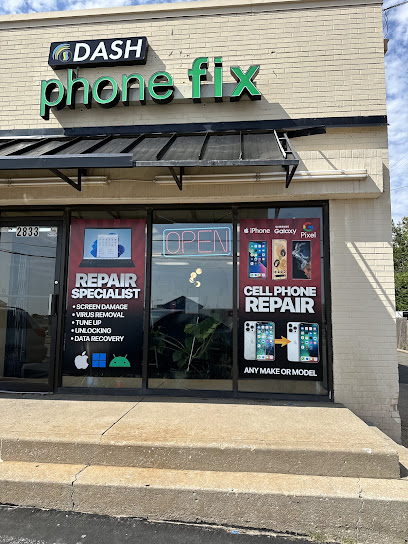
Facing persistent smartphone issues like charging problems, slow performance, or battery misreadings can be frustrating despite following essential troubleshooting steps. If simple fixes like restarting your device or clearing storage don’t restore your phone’s full function, professional help is the key to saving time and avoiding further damage. At Dash Repairs, we specialize in comprehensive Cell Phone Repair services designed to quickly resolve hardware and software problems with expert precision.

Don’t let glitches disrupt your day or risk losing important data. Whether you have an iPhone needing battery replacement or an Android device with connectivity issues, our skilled technicians offer fast turnaround times, warranties, and affordable pricing you can trust. Take control of your smartphone’s health today by visiting Dash Repairs or exploring our tailored iPhone repair solutions. Act now and experience professional repairs that get you back online with confidence.
Frequently Asked Questions
How do I restart my smartphone to resolve glitches?
To restart your smartphone, press and hold the power button until the menu appears, then select “Power Off” or “Restart.” Wait about 15–20 seconds before turning the device back on to clear temporary files and reset system processes.
What should I check if my smartphone is not charging?
Inspect both the charging cable and the port for damage or debris that may block electrical connections. Try using a different cable or power outlet, and if the issue persists, consider professional assessment.
How can I free up storage space to improve my smartphone’s performance?
To free up storage space, review your media files and delete unnecessary photos or videos. Uninstall seldom-used apps and regularly clear app caches to reclaim valuable storage space and optimize device speed.
Why is it important to update my smartphone’s software?
Updating your smartphone’s software protects against security vulnerabilities and may include performance improvements. Connect to WiFi and ensure your device is charged above 50% to download and install updates for better functionality.
How do I calibrate my smartphone’s battery for accurate readings?
To calibrate your smartphone’s battery, completely drain it until the device shuts down, then charge it to 100% without interruption. Leave it plugged in for an additional 30 minutes after reaching full charge to reset the battery indicator.
How can I identify and remove problematic apps on my smartphone?
Check battery usage in the settings to identify apps consuming excessive background power and data. Uninstall any suspicious or resource-hungry apps to maintain optimal performance and protect your device’s security.
Recommended
- 7 Essential Common Android Repairs Every User Should Know | Dash Cellular Repair | Cell Phone, iPhone, Laptop Repair in Oklahoma
- 7 Examples of Quick Fix Repairs for Your Devices | Dash Cellular Repair | Cell Phone, iPhone, Laptop Repair in Oklahoma
- 7 Quick Fix Examples Every Smartphone User Should Know | Dash Cellular Repair | Cell Phone, iPhone, Laptop Repair in Oklahoma
- 7 Most Common Phone Repairs You Need to Know | Dash Cellular Repair | Cell Phone, iPhone, Laptop Repair in Oklahoma