Fixing a broken laptop screen might sound intimidating, but it is more common than you think. More than one in three laptop owners experience screen damage within the first three years. Most people panic at the first sign of flickers, cracks, or dead pixels. Here is the surprising part. With the right steps and patience, even total beginners can tackle their own screen repair and save hundreds in costs.
Table of Contents
- Assess Damage: Evaluate The Laptop Screen Condition
- Gather Tools: Collect Necessary Repair Equipment
- Disassemble: Carefully Open Your Laptop Case
- Replace: Install The New Laptop Screen
- Reassemble: Put Your Laptop Back Together
- Test: Verify Screen Functionality After Repair
Quick Summary
| Key Point | Explanation |
|---|---|
| 1. Assess screen condition thoroughly. | Check for cracks, pixel issues, and discoloration by examining under good lighting and tactile inspection. |
| 2. Gather the right tools for repair. | Use a precision screwdriver, anti-static wrist strap, and plastic spudgers to safely facilitate screen replacement. |
| 3. Document disassembly steps carefully. | Take photos during disassembly to ensure proper reassembly and component placement later on. |
| 4. Ensure proper installation of the new screen. | Match the display specifications accurately and connect all cables securely to prevent functionality issues. |
| 5. Conduct comprehensive testing post-repair. | Verify the screen’s color, response, and stability by running various applications and manipulations after installation. |
Assess Damage: Evaluate the Laptop Screen Condition
Before diving into laptop screen repair, a thorough damage assessment is crucial to determine the appropriate fix. Laptop screen issues can range from minor cosmetic scratches to severe structural damage that requires complete replacement. Visual inspection is your first critical step in understanding the extent of screen damage and planning your repair strategy.
Start by examining your laptop screen in different lighting conditions. Natural daylight provides the best illumination for detecting subtle cracks, pixels issues, or discoloration. Look closely for hairline fractures, which might be invisible at first glance but can significantly impact screen functionality. Small spiderweb-like cracks might seem insignificant but can quickly spread, compromising the entire screen’s structural integrity.
Carefully run your fingertip gently across the screen surface to detect any irregularities. Raised areas, sharp edges, or uneven textures could indicate underlying damage. Pay special attention to screen corners and edges, where impacts are most likely to cause structural weakening. If you notice responsive touch areas, dead pixels, or color distortions, these are clear indicators of potential screen damage that might require professional intervention.
Your laptop’s display connection also plays a critical role in screen performance. Gently open and close the laptop lid, observing how the screen responds. Unusual flickering, color shifting, or screen blackouts when moving the display suggest potential cable or connection problems. Learn more about diagnosing screen issues before attempting any repairs.
Document your findings meticulously. Take clear, well-lit photographs of the screen from multiple angles. These images will help you communicate the exact damage when seeking professional repair advice or purchasing replacement parts. By conducting a systematic and thorough assessment, you’ll gain valuable insights into your laptop screen’s condition and the most appropriate repair approach.
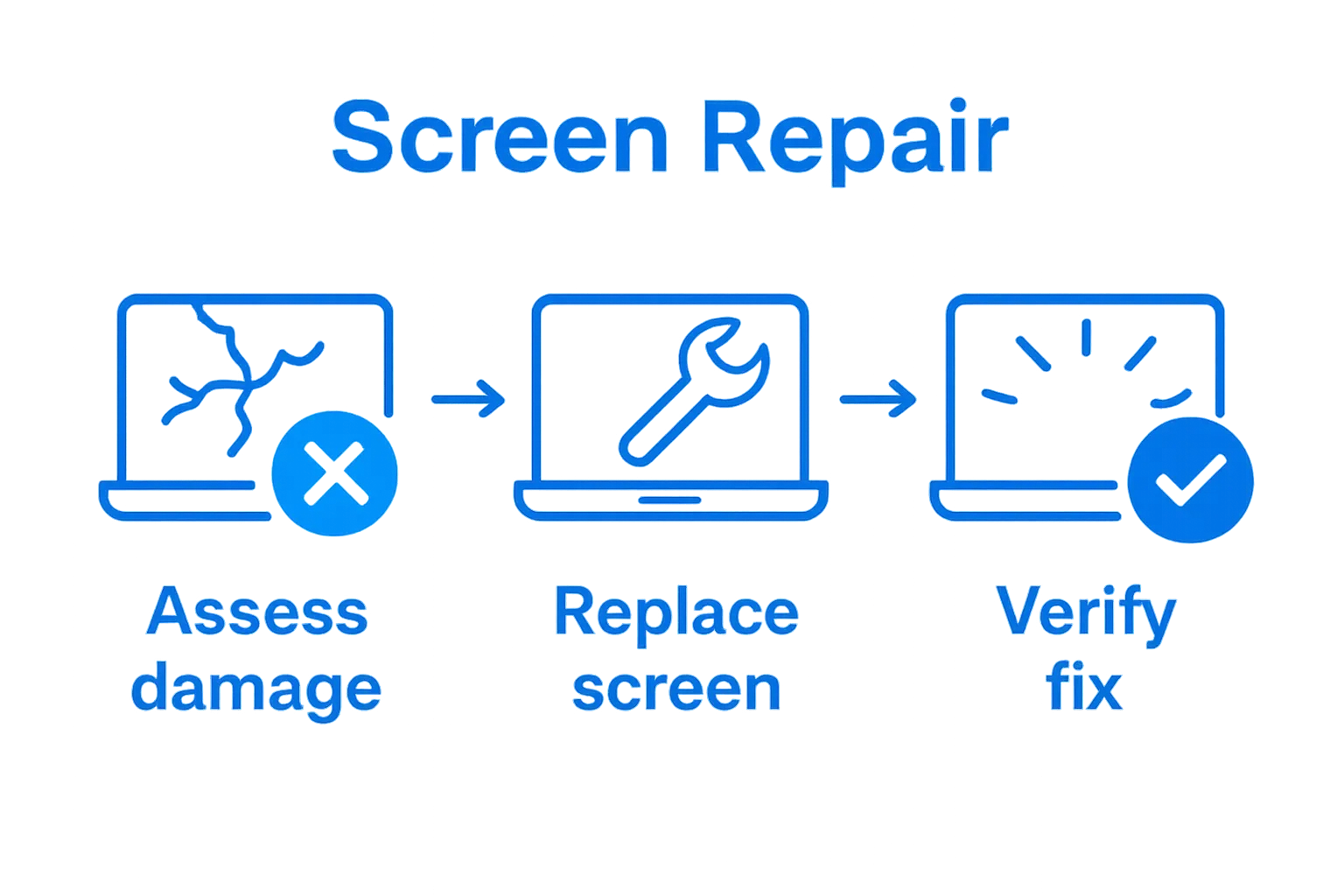
The following table provides an overview of the main steps for replacing a laptop screen, with a brief description and key precautions for each phase.
| Step | Description | Key Precaution |
|---|---|---|
| Assess Screen Condition | Examine damage, take photos, and plan repair | Check under good lighting, document all |
| Gather Tools & Prepare | Set up workspace, organize tools, and keep parts safe | Avoid static; label parts |
| Disassemble Laptop | Remove power sources, open case, photograph process | Handle ribbon cables with care |
| Replace Screen | Disconnect old screen, install the new one, test connection | Match model exactly, connect cables gently |
| Reassemble Device | Return all parts and screws, seal case | Avoid pinching cables, tighten evenly |
| Test Screen Functionality | Power on, check display for issues, confirm all features work | Watch for flickers, dead pixels, touch |
Gather Tools: Collect Necessary Repair Equipment
Successful laptop screen repair requires precision and the right set of tools. Professional repair demands more than just enthusiasm you need a carefully curated toolkit that allows safe and effective screen replacement. Before starting, create a dedicated workspace with clean, well-lit surfaces and ensure you have sufficient room to organize your tools and components.
Your essential toolkit will include several specialized instruments. A precision screwdriver set with multiple head sizes is critical for removing laptop screws without causing damage. Magnetic screwdrivers work best to prevent tiny screws from getting lost during the repair process. Soft anti static wrist straps protect sensitive electronic components from potential electrical discharge. Plastic spudgers or pry tools are crucial for carefully separating delicate laptop screen connections without breaking fragile connectors.
Additional recommended tools include clean microfiber cloths for handling screen surfaces, isopropyl alcohol for cleaning contact points, and fine tweezers for manipulating small connectors. Work gloves can protect your hands during more challenging removal steps. Learn about professional repair equipment to understand the nuances of proper tool selection. High quality tools are an investment that can make the difference between a successful repair and potential additional damage.
Organize your workspace methodically. Place a clean white cloth or paper to provide contrast when working with small components. Keep a small container nearby to store screws and small parts. Label sections of your workspace for different stages of the repair process. By preparing thoroughly and gathering the right equipment, you significantly increase your chances of a successful laptop screen repair.
Below is a table summarizing the essential tools needed for laptop screen repair, along with their purpose and any helpful tips mentioned in the article.
| Tool | Purpose | Tips/Notes |
|---|---|---|
| Precision screwdriver | Remove and install laptop screws | Use magnetic types to prevent loss of screws |
| Anti-static wrist strap | Prevent static discharge on electronics | Wear consistently throughout the process |
| Plastic spudger/pry tool | Detach casing and connectors safely | Avoid damage to fragile components |
| Microfiber cloth | Clean screen surfaces and components | Handle screen to prevent smudges |
| Isopropyl alcohol | Clean contact points and components | Use sparingly for thorough but safe cleaning |
| Fine tweezers | Manipulate small connectors and cables | Useful for intricate tasks |
| Work gloves | Protect hands during handling | Optional for tougher removal steps |
| Magnetic parts tray | Store small screws and components | Aids in organization during repair |
Disassemble: Carefully Open Your Laptop Case
Disassembling your laptop requires surgical precision and methodical approach. Preparation is more important than speed when you are about to expose your device’s delicate internal components. Before beginning, ensure your workspace is clean, well-lit, and free from potential static electricity that could damage sensitive electronics.
Start by powering down your laptop completely and unplugging all external power sources. Remove the battery if it is removable to eliminate any potential electrical risks. Place your laptop on a soft, clean surface that provides stability during disassembly. Photograph each step of the disassembly process to create a visual reference for reassembly. This documentation will prove invaluable if you encounter challenges during the repair.
Carefully inspect the laptop’s exterior for all screws. Modern laptops often have hidden screws beneath rubber feet or warranty stickers. Use a plastic spudger to gently lift these covers without causing damage. Select the appropriate screwdriver from your precision toolkit matching the exact screw head size to prevent stripping or damaging the threads. Work systematically, removing screws and storing them in a magnetic parts tray or clearly labeled compartments to maintain organization.
Once screws are removed, gently separate the laptop case using plastic pry tools. Apply even, gentle pressure to avoid cracking the plastic or breaking internal connectors. Some laptops have intricate clip mechanisms that require specific techniques to separate without causing damage. Explore professional disassembly techniques to understand the nuanced approach different laptop models might require. Pay close attention to ribbon cables and connection points as you slowly open the case. These delicate components can tear easily if not handled with extreme care.
Your goal is to expose the screen connection without introducing additional damage to the laptop’s internal structure.
Replace: Install the New Laptop Screen
Installing a new laptop screen demands precision and careful attention to detail. Matching the exact screen specification is crucial before beginning the replacement process. Carefully compare your old screen’s model number, dimensions, and connector type to ensure complete compatibility with the replacement screen. Even slight variations can result in a screen that physically fits but fails to function correctly.
Begin by positioning the new screen in the exact orientation of the original display. Delicate connection points require gentle handling to prevent bending or damaging the fragile ribbon cable. Align the screen mount points precisely, ensuring that screw holes match perfectly with the laptop’s frame. Use the original mounting brackets if they are transferable, as these provide critical structural support and ensure proper screen positioning.
Carefully connect the display ribbon cable, applying minimal pressure to seat it correctly. Most modern laptop screens use a flat, thin connection that slides into a specific socket. Wiggle the connector gently to ensure a secure fit without forcing it. Static electricity can damage electronic components, so maintain ground contact using an anti static wrist strap or by touching a metal surface periodically during the installation.
Explore professional laptop repair techniques to understand the nuanced approach for different laptop models. After connecting the screen, perform a preliminary test before fully reassembling the laptop. Reconnect the battery and power on the device to verify the screen functions correctly. Check for uniform display, proper brightness levels, and responsive touch capabilities if applicable. Watch for any flickering, color distortion, or dead pixels that might indicate an improper connection. If everything appears functional, proceed with carefully replacing screws and reassembling the laptop case, ensuring each component sits precisely in its original position.
Reassemble: Put Your Laptop Back Together
Reassembling your laptop represents the final critical stage of screen repair, where precision and patience determine the success of your entire repair process. Methodical reconstruction is more important than speed, requiring careful attention to every component and connection. Begin by referencing the photographs you took during disassembly, using them as a visual guide to ensure each part returns to its original position.
Start by gently reconnecting all internal cables and ribbon connectors, making certain each connection is secure but not overly tight. Soft, even pressure prevents potential damage to delicate electronic interfaces. Align mounting brackets and internal supports precisely, checking that no cables are pinched or twisted. The screen should sit perfectly flush within the laptop frame, with no visible gaps or misalignments that could compromise structural integrity.
Carefully replace each screw in its original location, using the same precision screwdriver from earlier. Work in a cross pattern when tightening screws to ensure even pressure and prevent warping. Do not overtighten, as this can strip threads or crack plastic mounting points. If rubber feet or warranty stickers were removed, replace them carefully to maintain the laptop’s original seal and appearance.
Explore professional laptop repair techniques to understand nuanced reassembly approaches. After completing the physical reassembly, perform a comprehensive functionality test. Connect the power adapter and boot the laptop, checking screen responsiveness, color accuracy, and overall display performance. Open and close the lid multiple times to verify the screen’s movement and connection stability. Examine the screen from multiple angles, looking for any signs of improper installation such as flickering, dead pixels, or unusual color distortions. A successful reassembly means your laptop looks and functions exactly as it did before the screen replacement.
Test: Verify Screen Functionality After Repair
Testing your laptop screen after repair is a critical final step that determines the success of your repair effort. Comprehensive testing goes beyond simply powering on the device and requires systematic verification of multiple display characteristics. Begin by connecting your laptop to a power source and booting the system, paying close attention to how the screen initializes and responds to your interactions.
Start with a visual inspection of the entire screen surface. Check for uniform color distribution and examine the display from multiple angles to identify any potential irregularities. Open several applications with different background colors to test color consistency and screen uniformity. Run diagnostic tests that can reveal hidden pixel issues, using online screen testing tools or built in diagnostic software. Pay special attention to screen edges and corners, where display connections are most likely to exhibit problems.
Test the screen’s physical functionality by opening and closing the laptop lid multiple times. Observe the display’s response during movement to ensure the connection remains stable and no flickering occurs. Adjust screen brightness through system settings, verifying that brightness controls work smoothly. If your laptop has touch screen capabilities, test touch responsiveness across the entire screen surface, checking for any dead zones or unresponsive areas. Explore professional screen testing techniques to understand advanced diagnostic methods.
During your testing, document any anomalies or unexpected behaviors. Minor issues might indicate improper installation or potential future problems. If you detect persistent screen glitches, color inconsistencies, or connection problems, it may be necessary to disassemble and reinstall the screen or seek professional assistance. A successful repair means your laptop screen functions exactly as it did before the damage occurred, with crisp display quality, stable connections, and full responsiveness across all interaction modes.
Get Professional Laptop Screen Repairs When DIY Isn’t Enough
You have already learned the essentials of diagnosing and replacing a laptop screen, from assessing cracks and dead pixels to carefully reassembling every part. But sometimes even with the right steps, things can go wrong. Dead pixels can reappear or the screen might flicker after you think the repair is finished. If your quick fixes did not solve the problem or if reassembly just feels too risky, it is time to let experts handle it. For those moments when DIY becomes overwhelming, our Cell Phone Repair team also specializes in fast, affordable laptop repairs designed to save you stress and money over device replacement.

Choose peace of mind and let our certified technicians take care of stubborn cracked screens, backlight issues, or connection problems that are hard to fix on your own. With a solid warranty on every repair, proven service quality, and a dedicated local team, Dash Repairs is the reliable choice for hassle-free repairs. Do not wait until minor screen damage turns into a bigger headache. Book your repair with us now and get your device working perfectly again.
Frequently Asked Questions
What are the first steps to assess laptop screen damage?
Begin by performing a visual inspection of the screen in various lighting conditions, looking for cracks, dead pixels, or discoloration. Document your findings with photographs for reference.
What tools do I need for laptop screen repair?
Essential tools include a precision screwdriver set, anti-static wrist straps, plastic spudgers, microfiber cloths, isopropyl alcohol for cleaning, and fine tweezers to handle small components safely.
How can I safely open my laptop case for repair?
Power down your laptop, unplug it, and remove the battery if possible. Use a plastic spudger to find and remove screws, and carefully detach the case to avoid damaging internal components.
What should I check after installing a new laptop screen?
After installation, power on the laptop to test the screen’s functionality. Check for uniform color distribution, responsiveness, and ensure there are no flickers or dead pixels. Verify that brightness controls operate smoothly.
Recommended
- Broken Laptop Screen, What do I do? | Dash Cellular Repair | Cell Phone, iPhone, Laptop Repair in Oklahoma
- SEO | Dash Cellular Repair | Cell Phone, iPhone, Laptop Repair in Oklahoma
- Computer Repairs | Laptop Repairs | Virus Removal | Same Day Fix
- How to Quickly and Easily Fix Your Broken Cell Phone | Dash Cellular Repair | Cell Phone, iPhone, Laptop Repair in Oklahoma