
Over 42% of tablet repairs in american households succeed when the right steps are followed from the start. Tablet issues range from cracked screens to mysterious connectivity problems, turning simple fixes into major headaches if you’re unprepared. With tablets becoming essential tools for work, school, and daily life, a careful approach to repair can keep you connected and productive. This guide lays out everything you need to confidently prepare, assess, and address common tablet problems before they get worse.
Table of Contents
- Assess Visible Damage And Functionality
- Back Up All Important Data
- Identify Common Tablet Repair Issues
- Gather Required Tools And Materials
- Clean And Prepare Your Tablet For Repair
- Test Device After Completing Repairs
- Seek Professional Help For Complex Problems
Quick Summary
| Takeaway | Explanation |
|---|---|
| 1. Conduct a thorough assessment first | Inspect for visible damage and test functionality to identify issues before attempting repairs. This step is crucial for successful outcomes. |
| 2. Always back up your data | Protect personal information by using cloud storage and external methods to ensure no data is lost during repairs. This is a necessary precaution. |
| 3. Know common repair issues | Familiarize yourself with frequent tablet problems like screen or power issues to expedite troubleshooting and repairs effectively. |
| 4. Gather the right tools | Assemble necessary tools like precision screwdrivers, spudgers, and cleaning supplies to prevent further damage and enhance your repair process. |
| 5. Test device thoroughly after repairs | Verify that all functionalities, including connectivity and hardware, work correctly to ensure the repair resolved the original issues without new problems. |
1. Assess Visible Damage and Functionality
Before diving into any tablet repair, your first critical step is conducting a thorough visual and functional assessment. According to the Open Repair Alliance, over 42% of tablet repairs are successful, but that success starts with understanding exactly what is wrong with your device.
Begin by carefully examining your tablet for visible damage. Look for telltale signs like cracked screens, damaged ports, or physical wear. Press each button systematically and observe how they respond. Check for responsive touchscreen areas, screen discoloration, or unusual lines that might indicate deeper internal damage.
Next, perform a comprehensive functionality test. Power on the device and check if it boots correctly. Verify that:
- WiFi and Bluetooth connections work
- Battery charges and holds power
- Touchscreen registers inputs accurately
- Audio and speakers function properly
- Camera and other integrated features operate normally
As Repair Café notes, more than 40% of devices can be repaired if the initial assessment is done meticulously. By understanding the full extent of damage upfront, you can save time, money, and potentially avoid unnecessary repair attempts.
2. Back Up All Important Data
Before you start any tablet repair, protecting your personal information is paramount. Repair Café strongly advises users to back up critical data before attempting repairs, as some procedures can inadvertently risk data loss.
Data backup is not just a precaution it is a necessity. Your tablet likely contains irreplaceable memories photos, documents, messages, and personal records that would be devastating to lose. Think of backing up as creating a safety net for your digital life.
To effectively protect your data, use multiple backup methods:
- Cloud storage services like Google Drive or iCloud
- External hard drives or USB storage devices
- Computer backup software
- Dedicated tablet backup applications
As recommended by the Massachusetts Library System, creating comprehensive backups before any hardware repair can prevent potential data catastrophes. Verify your backup is complete and accessible before proceeding with any repair work. Test the restoration process to ensure you can successfully retrieve your information if needed.
3. Identify Common Tablet Repair Issues
Before jumping into complex repair procedures, understanding the most frequent tablet problems is crucial. The Open Repair Alliance reveals that certain issues are remarkably consistent across devices, with screen damage accounting for 17% of repairs and power problems representing 16.7% of all tablet malfunctions.
Recognizing common tablet issues can save you time and potentially costly professional repairs. These problems often manifest in predictable patterns that attentive users can identify early. For a comprehensive understanding of these challenges, check out our guide to common tablet repairs.
Most tablet repair challenges fall into several key categories:
- Screen Damage: Cracks, unresponsive touch areas, or display discoloration
- Power Problems: Batteries that drain quickly or devices that will not turn on
- Charging Port Issues: Loose connections or difficulty maintaining power
- Button Malfunctions: Unresponsive or stuck buttons
According to Repair Café, many tablet issues stem from simple problems like depleted batteries or minor physical damage. By systematically examining each potential problem area, you increase your chances of a successful DIY repair. Pay close attention to how your device responds during initial diagnostics this careful observation is your first step toward an effective repair strategy.
4. Gather Required Tools and Materials
Repairing a tablet requires more than good intentions. As recommended by the Massachusetts Library System, assembling the right tools is crucial for a successful repair process. Preparation is the key to preventing additional damage.
Repair Café suggests consulting resources like iFixit to identify model specific tools, ensuring you have exactly what you need for your particular device. Professional repair technicians understand that using inappropriate tools can turn a simple fix into an expensive mistake.
Your essential tablet repair toolkit should include:
- Precision screwdrivers with multiple tip sizes
- Plastic spudgers for prying components
- Suction cups for safely removing screens
- Anti static wrist strap
- Magnetic project mat
- Tweezers with fine tips
- Isopropyl alcohol and microfiber cloths
- Magnifying glass or headband magnifier
Before starting any repair, organize your workspace and lay out tools systematically. This methodical approach prevents losing small components and helps you work efficiently. Remember that patience and preparation are your most valuable tools in any tablet repair project.
5. Clean and Prepare Your Tablet for Repair
Before diving into any tablet repair, proper preparation is your first line of defense against potential complications. Repair Café emphasizes the critical importance of preparing your device carefully before attempting any repairs.
A clean workspace and well prepared device can make the difference between a successful repair and a costly mistake. For more detailed insights into preparing for tablet repairs, check out our tablet repair basics guide.
Follow these essential preparation steps:
- Power off the tablet completely
- Remove all external accessories and cases
- Clean the exterior with microfiber cloth
- Use compressed air to remove dust from ports
- Work on a clean, well lit surface
- Use an anti static mat to prevent electrical damage
- Organize your tools within easy reach
According to the Massachusetts Library System, creating a dust free environment is crucial to prevent contaminants from entering your device during repairs. Think of your repair area like a miniature surgical room where cleanliness and precision are paramount. Take your time with preparation this initial investment will significantly improve your chances of a successful tablet repair.
6. Test Device After Completing Repairs
Successful tablet repair is not complete until you thoroughly verify that everything functions perfectly. Repair Café strongly recommends comprehensive testing to ensure your repair resolves the original issue without introducing new complications.
A systematic testing approach can save you from potential frustration and additional repair attempts. For more comprehensive insights into ensuring repair success, review our DIY mobile repair steps guide.
Your post repair testing checklist should include:
- Power on and verify boot sequence
- Check touchscreen responsiveness
- Test all physical buttons
- Verify WiFi and cellular connectivity
- Assess battery performance
- Examine audio output from speakers
- Verify camera functionality
- Check screen brightness and color accuracy
According to the Massachusetts Library System, thorough testing helps confirm that hardware components and software performance meet expected standards. Think of this final step as your quality assurance process. Take your time and methodically check each function to guarantee a successful repair.
7. Seek Professional Help for Complex Problems
Knowing when to step back and call in experts can save you time, money, and potential further damage to your tablet. Repair Café emphasizes that some repairs require specialized skills and tools beyond typical DIY capabilities.
Recognizing the limits of your technical expertise is a sign of wisdom, not weakness. While many tablet issues can be resolved at home, certain complex problems demand professional intervention. Learn more about making this critical decision with our types of tablet repairs guide.
Consider seeking professional help when you encounter:
- Extensive water damage
- Motherboard or internal component failures
- Problems with specialized hardware connections
- Recurring issues after multiple repair attempts
- Devices under manufacturer warranty
- Repairs requiring specialized diagnostic equipment
The Massachusetts Library System recommends professional technicians for intricate hardware problems that exceed standard troubleshooting. Professional repair services offer advanced diagnostics, specialized tools, and expertise that can often restore your device more effectively and efficiently than DIY attempts. Remember repair professionals can sometimes save you money in the long run by preventing additional damage.
Below is a comprehensive table summarizing the key steps and recommendations for effectively repairing a tablet as discussed in the article.
| Step | Actions and Details | Benefits/Outcomes |
|---|---|---|
| Assess Damage & Functionality | Conduct thorough visual and functional assessments; check buttons and connections. | Identifies issues, increases repair success rates by over 42% as per alliances. |
| Back Up Data | Use multiple backup methods like cloud storage, external drives, and backup software. | Protects irreplaceable data, prevents data loss during repairs. |
| Identify Common Issues | Recognize common issues: screen damage, power problems, charging port issues, button malfunctions. | Saves time and reduces potential for costly repairs. |
| Gather Tools | Assemble precision screwdrivers, plastic spudgers, suction cups, anti-static strap, magnetic mat, and other professional tools. | Prevents damage and ensures proper handling during repairs. |
| Clean & Prepare for Repair | Power off device, clean exterior, organize tools, ensure working in a dust-free environment. | Minimizes complications, ensures a smooth repair process. |
| Test After Repairs | Verify boot sequence, test touchscreen, connectivity, battery, audio, camera functionality, and screen accuracy. | Ensures repair success, confirms functionality without new issues. |
| Seek Professional Help | Consult professionals for extensive damage, complex internal issues, and repairs involving specialized equipment. | Provides expertise, potentially avoids further damage, and saves time/money. |
Get Your Tablet Back to Peak Condition With Expert Help
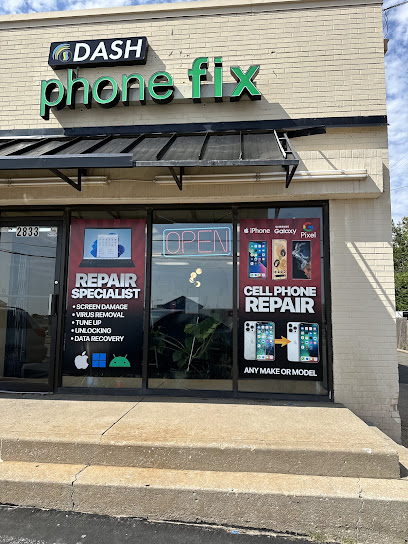
Struggling with cracked screens, unresponsive buttons, or power issues on your tablet can feel frustrating and overwhelming. This article highlights the essential steps you need to confidently assess, prepare, and repair your device, but some problems require professional attention to avoid costly mistakes. If you want quick turnaround times, dependable warranties, and affordable pricing for your tablet repairs, look no further than Dash Repairs.

Discover why our trusted technicians are the go-to experts for cell phone repair and tablet solutions in your area. From battery replacements to cracked screen fixes, our team is ready to restore your device’s full functionality while protecting your valuable data. Take the first step today and visit Dash Repairs for convenient, professional service you can count on.
Frequently Asked Questions
What are the first steps in a tablet repair checklist?
Begin your tablet repair checklist by assessing visible damage and functionality. Check for cracked screens, damaged ports, and ensure all buttons work, while also performing a thorough functionality test to confirm the device operates correctly.
How can I safely back up my tablet data before repairs?
To safely back up your tablet data, utilize multiple methods such as cloud storage, external hard drives, and dedicated backup applications. Ensure your backup is complete and accessible to prevent any data loss during the repair process.
What are common issues to look for when repairing a tablet?
Common issues to look for include screen damage, battery problems, charging port issues, and unresponsive buttons. Recognizing these problems early can save time and reduce the likelihood of costly professional repairs.
What tools do I need for a successful tablet repair?
Gather essential tools such as precision screwdrivers, plastic spudgers, and suction cups for a successful tablet repair. Organize your tools and work on a clean surface to minimize the risk of additional damage during the repair process.
How do I test my tablet after completing repairs?
After completing repairs, power on the device and verify that all functions work correctly, such as the touchscreen, buttons, and connectivity options. Take the time to methodically check each function to ensure the repair was successful.
When should I seek professional help for tablet repairs?
Consider seeking professional help if you encounter extensive water damage, motherboard failures, or recurring issues after multiple attempts. Professional technicians can often diagnose and fix complex problems more effectively than a DIY approach.
Recommended
- Complete Guide to Tablet Repair Basics | Dash Cellular Repair | Cell Phone, iPhone, Laptop Repair in Oklahoma
- Complete Guide to Common Tablet Repairs | Dash Cellular Repair | Cell Phone, iPhone, Laptop Repair in Oklahoma
- Types of Tablet Repairs: Complete Guide for 2024 | Dash Cellular Repair | Cell Phone, iPhone, Laptop Repair in Oklahoma
- Tablet Screen Fix Workflow: Step-by-Step Repair Process | Dash Cellular Repair | Cell Phone, iPhone, Laptop Repair in Oklahoma
- Akkus reparieren Guide: So bringen Sie Ihre Akkus zurück ins Leben – accu.blog