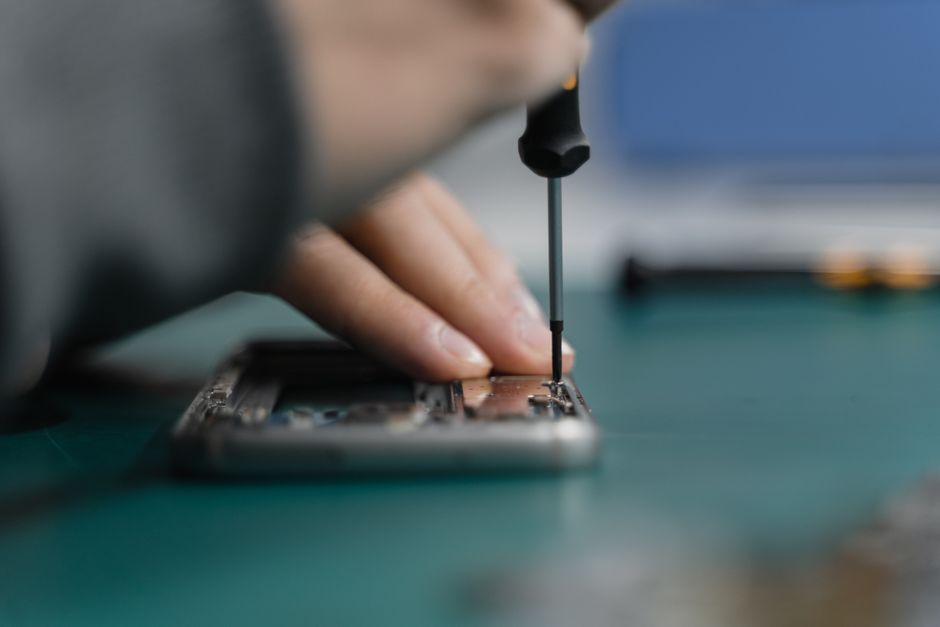
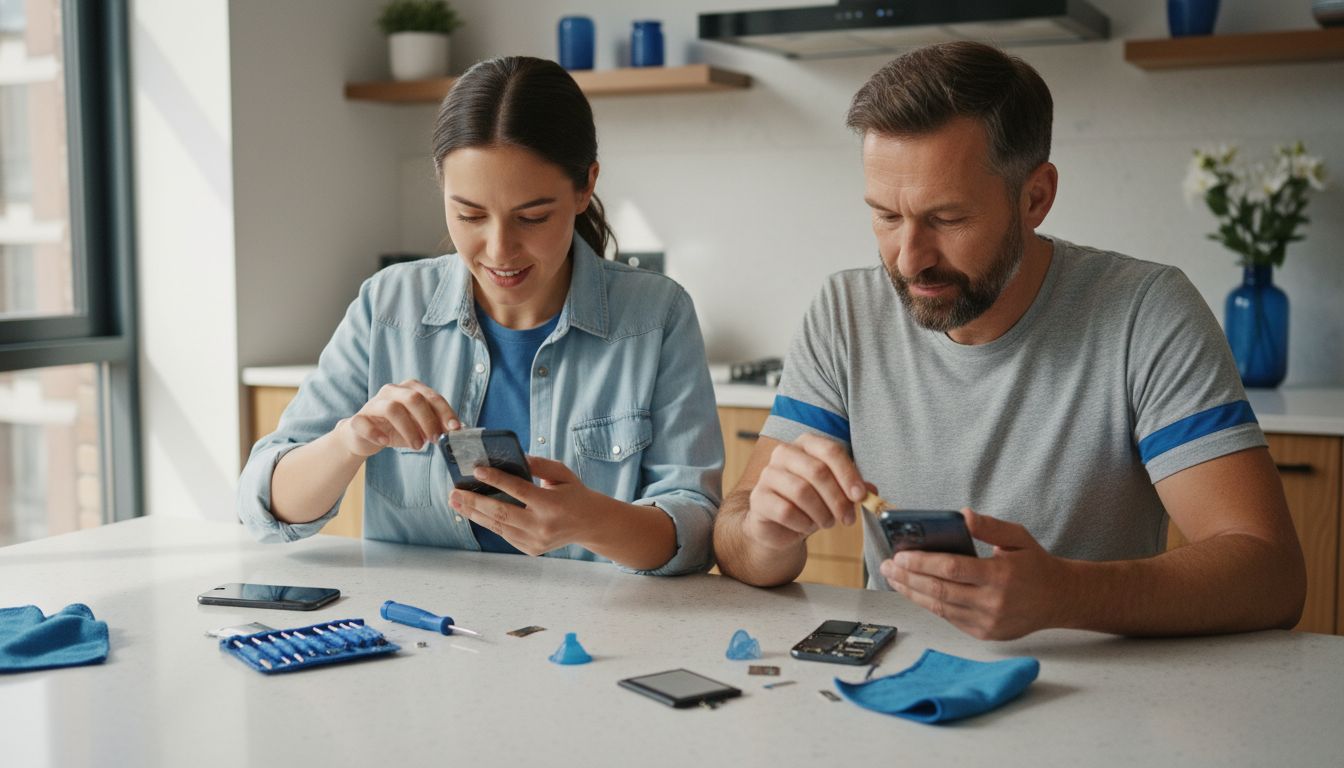
Cracked screens, fading batteries, and sticky charging ports threaten the smooth experience most smartphone owners expect. With more than 60 percent of users holding off repairs due to cost or inconvenience, simple DIY solutions have become a lifeline. Whether you are struggling with water damage or a sluggish device, a few smart fixes can restore your phone’s performance and save you money without the stress of waiting for professional help.
Table of Contents
- Repairing A Cracked Phone Screen At Home
- Quick Battery Replacement For Extended Use
- Cleaning Charging Ports To Restore Power
- Resolving Water Damage With Simple Steps
- Speeding Up A Slow Phone With Easy Fixes
- Fixing Unresponsive Touchscreens Instantly
- Unlocking Devices For Immediate Access
Quick Summary
| Takeaway | Explanation |
|---|---|
| 1. Assess crack severity for screen repairs | Assess whether the crack is minor or severe to determine if DIY fixes are appropriate or if professional help is needed. |
| 2. Optimize battery life with basic techniques | Extend your smartphone’s battery life by managing background processes and uninstalling unused applications. |
| 3. Clean charging ports regularly to ensure connectivity | Prevent charging issues by regularly removing dust and debris from your smartphone’s charging port. |
| 4. Act quickly to mitigate water damage | Immediately power off your phone and avoid charging it to prevent further water damage before trying drying methods. |
| 5. Use default settings for unlocking your device | Attempt default unlock patterns or biometric options to regain access without compromising security. |
1. Repairing a Cracked Phone Screen at Home
A cracked smartphone screen can turn your sleek device into a fragile, unusable mess. But before you rush to the nearest repair shop and spend hundreds of dollars, you can actually attempt some DIY fixes right from your home.
First things first screen repairs require careful handling. The key is understanding the severity of the crack and having the right tools. Minor surface cracks can often be managed with simple household items, while deeper damage might need professional intervention.
To start, gather these essential materials:
- Clear packing tape or screen protector
- Microfiber cloth
- Rubbing alcohol
- Clean workspace with good lighting
Begin by cleaning the screen thoroughly with your microfiber cloth. Gently wipe away dust and debris. If the crack seems superficial, apply a clear piece of packing tape over the damaged area. This temporary fix can prevent further spreading and protect your fingers from sharp edges.
For more comprehensive repairs, consider our guide on cracked screen solutions which provides detailed insights into professional and DIY techniques.
Warning: Do not attempt complex repairs if you are not confident. Improper handling can worsen the damage and potentially void your device warranty. When in doubt, seek professional help from experienced technicians.
2. Quick Battery Replacement for Extended Use
A dying smartphone battery can bring your digital world to a standstill. Understanding how to quickly replace or optimize your battery can save you time frustration and potentially expensive repair costs.
Battery health depends on multiple factors like charging habits temperature and usage patterns. Most smartphone users do not realize they can extend battery life or perform basic replacement techniques without professional intervention.
Before attempting a battery swap prepare these essential tools:
- Small screwdriver set
- Replacement battery
- Clean workspace
- Anti static wrist strap (recommended)
First verify your smartphone model allows user battery replacement. Many modern phones require professional tools and specialized knowledge. For smartphones with removable batteries the process becomes straightforward. Carefully power down your device remove the back cover and gently extract the existing battery.
When inserting the new battery ensure proper alignment and connection. Apply gentle pressure and avoid forcing components. Improperly installed batteries can cause electrical shorts or potential damage.
For more comprehensive guidance, check out our step by step phone battery replacement guide which provides detailed insights for various device models.
Pro Tip: Always purchase batteries from reputable manufacturers. Cheap knockoff batteries can pose safety risks and potentially damage your device.
3. Cleaning Charging Ports to Restore Power
A smartphone that refuses to charge can quickly turn from a minor inconvenience into a major headache. Dirt debris and oxidation in your charging port can interrupt power flow and potentially damage your device’s electrical connections.
Charging port maintenance requires precision and gentle handling. Most charging issues stem from accumulated lint dust and microscopic debris that block the connection between your charging cable and device port. Regular cleaning can prevent expensive repair costs and extend your smartphone’s functional lifespan.
Before starting the cleaning process gather these essential tools:
- Soft bristle brush or clean toothbrush
- Compressed air canister
- Wooden or plastic toothpick
- Isopropyl alcohol
- Clean microfiber cloth
Begin by powering off your device completely. Use compressed air to blow out loose particles gently. Hold the can upright and spray in short controlled bursts. For stubborn debris use a wooden toothpick to carefully remove lint without applying excessive pressure. Avoid metal tools which can scratch or damage sensitive electrical components.
For more detailed guidance about managing charging port issues, check out our comprehensive guide on fixing charging ports which provides step by step instructions for various smartphone models.
Warning: Never insert liquid directly into the charging port. Moisture can cause significant electrical damage. If your port seems extensively dirty or damaged seek professional assistance to prevent potential device failure.
4. Resolving Water Damage with Simple Steps
Accidental water exposure can transform your expensive smartphone into a paperweight within seconds. Understanding how to respond quickly can mean the difference between saving your device and facing a costly replacement.
Water damage is time sensitive and requires immediate action. The first few minutes are critical in preventing electrical shorts and permanent hardware destruction. Most smartphone users panic and make costly mistakes when their device gets wet.
Here are the essential immediate steps to take when your phone encounters water:
- Power off the device immediately
- Remove battery if possible
- Do not attempt to charge the device
- Keep the phone in a dry environment
Contrary to popular myths rice is not the most effective drying method. Professional technicians recommend using silica gel packets which absorb moisture more efficiently. Gently pat your device with a soft absorbent cloth and avoid using heat sources like hairdryers which can cause additional internal damage.
For comprehensive guidance on managing water damage scenarios, check out our complete guide to repairing water damaged phones which provides expert insights and step by step recovery techniques.
Pro Tip: Invest in waterproof phone cases or water resistant devices if you frequently expose your smartphone to potential moisture environments. Prevention is always more cost effective than repair.
5. Speeding Up a Slow Phone with Easy Fixes
A sluggish smartphone can transform your digital experience from smooth to frustrating in seconds. Understanding how to optimize your device’s performance can restore its original speed without costly professional intervention.
Smartphone performance optimization requires a strategic approach. Most performance issues stem from accumulated background processes unnecessary applications and limited storage space. Users can dramatically improve their device speed through simple maintenance techniques.
Here are the most effective strategies to accelerate your smartphone:
- Clear app cache and unnecessary data
- Uninstall unused applications
- Disable background app refresh
- Limit widgets and live wallpapers
- Update operating system regularly
Start by reviewing your installed applications. Many users accumulate dozens of apps they never use which consume valuable system resources. Systematically uninstall programs you no longer need and disable unnecessary background processes. Modern smartphones allow granular control over application permissions and resource allocation.
For more comprehensive insights into device optimization, explore our guide on quick fixes for local users which provides detailed strategies for improving smartphone performance.
Pro Tip: Perform a monthly digital cleanup. Think of it like maintaining a car periodic maintenance prevents long term performance degradation and extends your device’s functional lifespan.
6. Fixing Unresponsive Touchscreens Instantly
An unresponsive touchscreen can instantly transform your smartphone from a powerful communication tool into a frustrating paperweight. Understanding quick troubleshooting techniques can save you time money and potential device replacement.
Touchscreen responsiveness relies on multiple interconnected system components. Most screen issues stem from software glitches temporary system overloads or minor electrical interruptions. Users can often resolve these problems through strategic reset and diagnostic techniques.
Here are the most effective immediate touchscreen recovery strategies:
- Perform a soft reset
- Check screen sensitivity settings
- Remove protective screen covers
- Clean screen surface thoroughly
- Update device operating system
Start with the simplest solution. A soft reset can clear temporary system memory and restore touchscreen functionality. Press and hold your device power button for 10 to 15 seconds until the screen goes dark and the device restarts. This technique interrupts current system processes and can resolve minor software conflicts.
For more comprehensive insights into quick device repairs, explore our guide on fixing broken cell phones which provides detailed troubleshooting strategies.
Pro Tip: Touchscreen issues often indicate deeper hardware problems. If basic reset techniques fail schedule a professional diagnostic to prevent potential long term device damage.
7. Unlocking Devices for Immediate Access
Getting locked out of your smartphone can feel like being stranded without a key. Understanding device unlocking techniques can restore your access quickly and prevent unnecessary frustration.
Device unlocking requires strategic understanding of security protocols. Smartphones implement multiple layers of protection to ensure user privacy and prevent unauthorized access. Knowing legitimate unlocking methods can help you regain control without compromising your device’s security.
Here are effective strategies for device unlocking:
- Try default unlock patterns
- Use biometric authentication
- Utilize emergency contact options
- Reset device password
- Contact carrier support
Start by attempting basic unlock methods. If you have forgotten your password try using biometric options like fingerprint or facial recognition. Many modern smartphones offer multiple authentication pathways that can circumvent traditional password entry. Some devices include emergency contact features allowing trusted contacts to help restore access.
For comprehensive insights into mobile device unlocking processes, explore our guide on mobile device unlocking techniques which provides detailed step by step instructions.
Pro Tip: Always maintain a backup authentication method. Write down recovery codes or designate trusted contacts who can help you regain device access in emergency situations.
Below is a comprehensive table summarizing key DIY repair strategies and maintenance tips for smartphone users covered throughout the article.
| Repair Task | Key Steps & Tools | Benefits/Outcomes |
|---|---|---|
| Repair Cracked Screen | Clean screen, apply packing tape, consult professional guide if necessary. Tools: Clear tape, microfiber cloth. | Prevents crack spreading, protects fingers, DIY cost savings. |
| Battery Replacement | Verify model compatibility, remove back cover, align new battery. Tools: Screwdriver set, replacement battery. | Extends battery life, avoids expensive repairs, quick energy restoration. |
| Clean Charging Ports | Power off, use compressed air, avoid metal tools. Tools: Brush, toothpick, isopropyl alcohol. | Restores charging ability, prevents port damage, device longevity. |
| Address Water Damage | Power off immediately, remove battery, avoid charging. Tools: Soft cloth, silica gel. | Prevents electrical shorts, potential phone recovery, avoid hardware destruction. |
| Speed Up Device | Clear app cache, uninstall unused apps, update OS. | Improves speed, optimizes performance, enhances user experience. |
| Fix Unresponsive Touchscreen | Soft reset, check settings, clean surface. | Restores functionality, prevents further damage, saves time and cost. |
| Unlock Device | Try biometric options, reset password, contact support. | Restores access, maintains security, avoids frustration. |
Get Your Smartphone Fixed Fast by Local Experts
Facing cracked screens, poor battery life, or unresponsive touchscreens feels frustrating and can disrupt your daily routine. Whether you need a quick screen repair or help with device unlocking, Dash Repairs offers reliable solutions tailored to your needs. With expert technicians focused on speedy, affordable repairs for iPhones, Android phones, tablets, and laptops, you can trust us to bring your device back to life without the stress.
Ready to stop worrying about slow phones or damaged screens Take action now and experience professional service with warranties and quick turnaround times. Visit Cell Phone Repair for specialized fixes including battery replacements and water damage restoration or explore options for your iPhone repairs to get expert help. Discover how easy it is to repair instead of replace at Dash Repairs. Your smartphone deserves the best care available locally.
Frequently Asked Questions
How can I quickly fix a cracked phone screen?
You can apply clear packing tape over a minor crack to prevent it from worsening. Start by cleaning the screen with a microfiber cloth and apply the tape gently to avoid further damage.
What should I do if my smartphone battery is dying quickly?
You can uninstall unused apps and disable background processes to improve battery life. Regularly clear app cache and ensure app updates are disabled when not in use to extend usage time by up to 30%.
How can I clean my phone’s charging port safely?
Use a soft bristle brush and a can of compressed air to gently remove debris from the charging port. Power off your device first, then lightly insert the brush or air canister to clear out accumulated dirt and lint.
What immediate steps should I take for water-damaged phones?
Power off your phone immediately and remove the battery if possible. Keep the device in a dry area and use silica gel packets to absorb moisture effectively within the first few hours of exposure.
How can I speed up my smartphone if it’s running slow?
You can speed up your device by clearing the cache of apps and uninstalling those you no longer use. Review all installed applications and remove at least 5 that you haven’t accessed in months to quickly enhance performance.
What should I do if my touchscreen is unresponsive?
Perform a soft reset by holding down the power button for 10 to 15 seconds until the screen goes black. This action can resolve minor software issues and restore touchscreen functionality almost immediately.
Recommended
- 7 Examples of Quick Fix Repairs for Your Devices | Dash Cellular Repair | Cell Phone, iPhone, Laptop Repair in Oklahoma
- 7 Most Common Phone Repairs You Need to Know | Dash Cellular Repair | Cell Phone, iPhone, Laptop Repair in Oklahoma
- 7 Quick Fixes for Devices Every Local User Should Know | Dash Cellular Repair | Cell Phone, iPhone, Laptop Repair in Oklahoma
- 7 Affordable Device Repair Methods You Should Know | Dash Cellular Repair | Cell Phone, iPhone, Laptop Repair in Oklahoma